On this page
On this page
Quick Settings panel
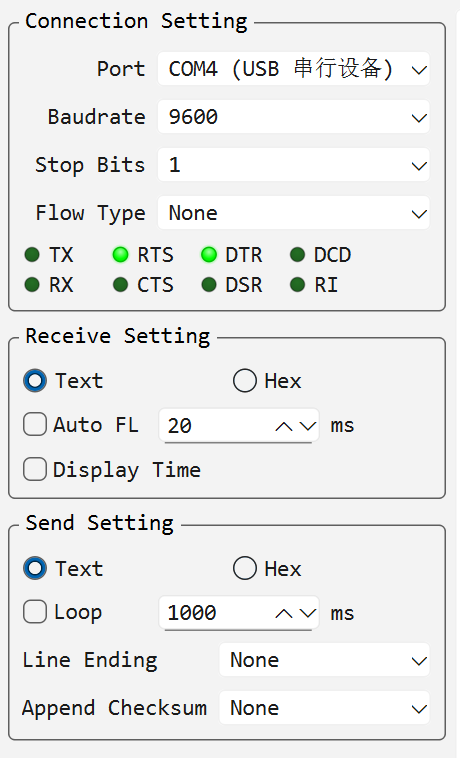
Quick Settings is the column of frequently used options on the left of every connection: Connection Settings, Receive Settings and Send Settings.
- The Quick Settings toolbar button only shows or hides the panel; it never changes the configuration.
- While the panel is collapsed, a port picker appears on the toolbar for fast switching; it only shows for serial connections — a TCP/UDP connection has no serial port to pick.
- To choose what the panel contains, open Settings and switch to the Quick Settings page. The application remembers the layout.
The page lists the groups as a tree with a short description next to every entry:
- Check or clear a group to show or hide it as a whole; keep at least one group checked.
- Expand a group to check or clear its individual fields, so the panel only contains what you actually use.
- Use Up and Down to reorder the groups, or the fields inside a group.
What the groups contain:
- Connection Settings: the connection parameters and the indicator lamps. The port and mode selectors are always shown; baud rate, data bits, parity, stop bits and flow control can be hidden or reordered individually.
- Receive Settings: receive format (Text or Hex), idle-interval line wrap and receive timestamps.
- Send Settings: send format, loop send, Append Line Ending, Enter Sends, checksum, sent-data echo, local echo and line-by-line send.
Data Bits, Parity (nearly always 8/None), Display Send, Local Echo and Line by Line start hidden to keep the panel compact; enable them on the Quick Settings page when needed.