Scenarios
Debug a serial port from anywhere on the Web
The site and the remote browser only need Internet access. The remote side does not need a route to the site's IP address, and the site does not open an inbound TCP port.
Use it for human live viewing, sending and port control across locations and NAT.
For a program, virtual COM port or script that needs continuous access, use direct RFC 2217 when its client can reach the server.
What follows is how two people work together: who grants what, when, and in which order it is verified. For what each switch means, the web interface, the traffic quota and the privacy boundary, see Web remote debugging with Live Console.
- At the device site, confirm that Serial Port Utility can open the port and exchange a known request locally, then sign in to the account that the remote engineer will use.
- Enable Live Console on the desktop but leave Allow Remote Send and Allow Remote Port Control off for the first view-only check.
- The remote engineer signs in at alithon.com, opens Live Console, selects the online computer and then selects the target port. Allow up to about 30 seconds for the first live events to appear.
- If a diagnostic command must be sent, the person at the device temporarily enables Allow Remote Send. Enable Allow Remote Port Control separately only when the remote engineer must open, close or reconfigure the port.
- Send one known command, confirm the command state, and verify the device response in the following RX log. A succeeded command alone does not prove that the device answered.
- When the session ends, turn the two remote-action permissions off again. Use desktop log files when the investigation needs a complete or long-running record.
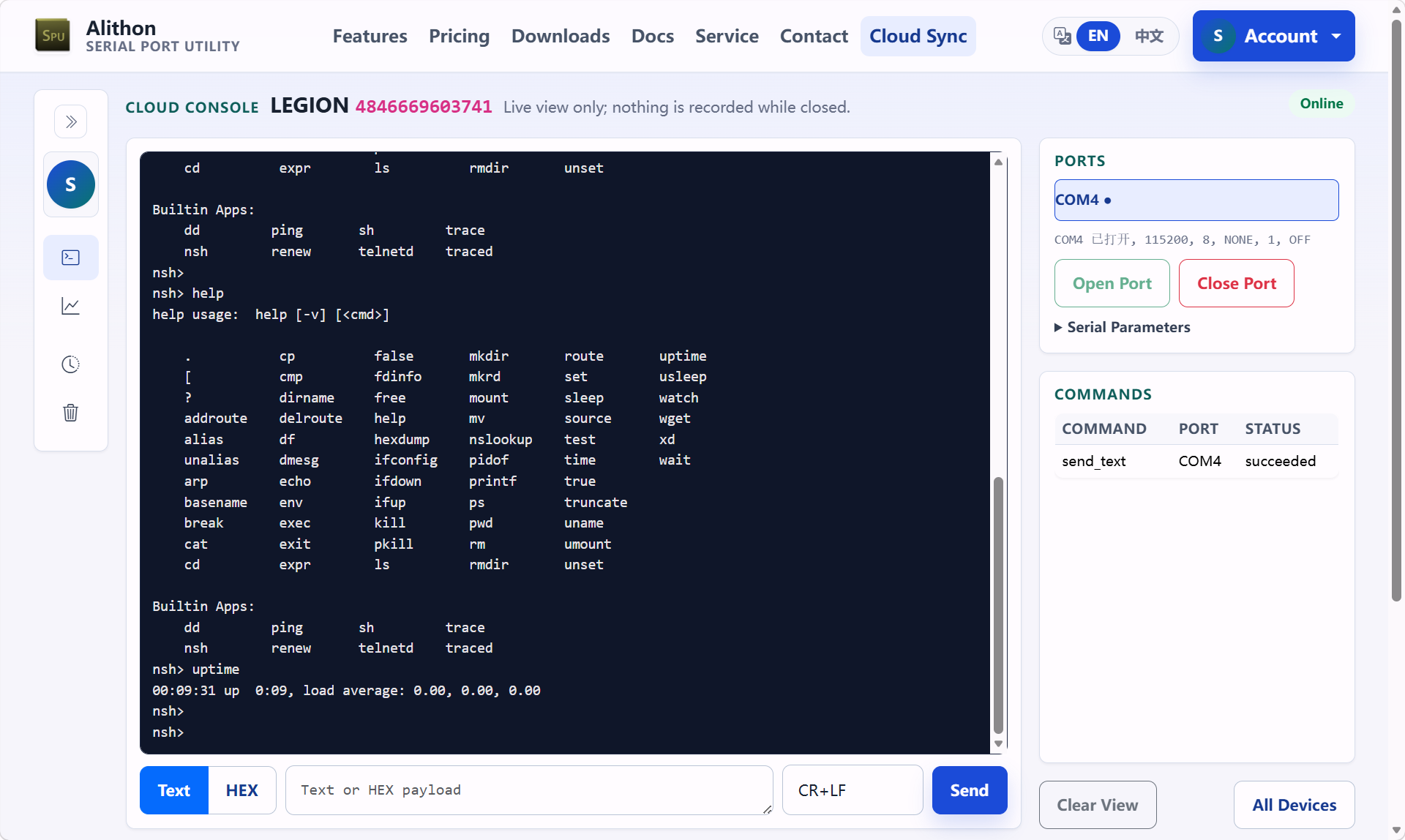
The session leaves no evidence of its own: the cloud keeps no traffic history, and nothing can be reviewed once the page is closed. Start a desktop log file at the site before the session when the investigation will need one.
Live Console is a live support window rather than a recorder: it uploads events only while someone is watching, keeps no traffic history and consumes the account's cloud traffic allowance and top-up balance.